How to organize downloaded files so you can find them later
· Editorial team newsfromatlanta24.com
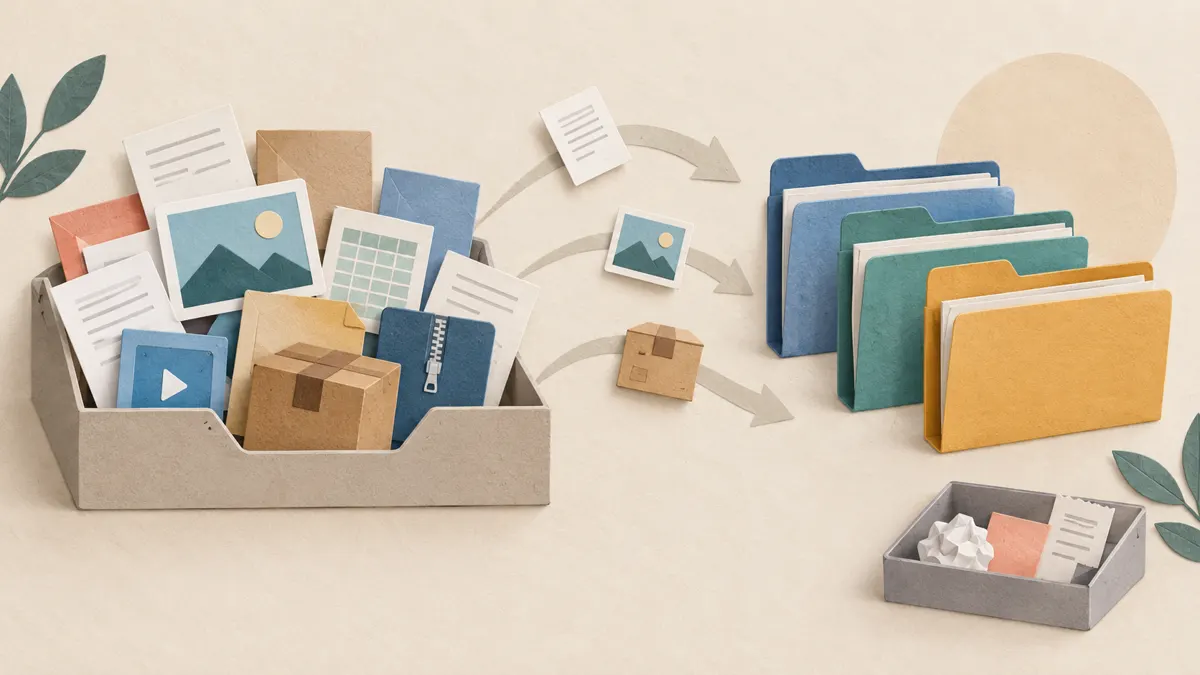
Treat your Downloads folder as an inbox: review what arrives, give useful files clear names, move them to permanent folders, and delete items you no longer need. The proposed routine below keeps the system simple enough to maintain and gives you a predictable place to look when you need a file again.
Start with one manageable sorting pass
Open your Downloads folder and sort by file type to bring similar items together. Reviewing a group of PDFs, pictures, or installers is easier than switching between unrelated files. If the folder feels overwhelming, finish one group before starting another.
- Identify files you recognize and still need.
- Preview documents and images whose names do not explain their contents. Avoid opening unfamiliar executable files just to identify them.
- Set uncertain items aside for a later decision instead of deleting them immediately.
- Move confirmed keepers to their permanent folders, then review the remaining clutter.
Do not rely on a file’s displayed date alone to identify when you downloaded it. The supplied Microsoft Q&A describes a case where date sorting did not match download order. Names and contents are better clues when deciding what a file is.
Choose permanent folders by purpose
Put files where you would naturally look for them later. A receipt belongs with the purchase or household records it concerns; a project document belongs with that project. Keeping everything in Downloads means remembering when you acquired it instead of what it is for.
As an editorial proposal, start with a few broad folders in your usual document location. Use these examples only if they match your needs:
- Household: receipts, warranties, and appliance manuals.
- Work or study: separate folders for active projects or courses.
- Personal records: documents you need to retain and retrieve.
- Pictures: images you intend to keep.
Add subfolders when a category becomes difficult to scan. Avoid building a detailed hierarchy before you know what you actually save. If an existing folder already fits, use it rather than creating a second location for the same subject.
Rename files with words you will remember
Rename useful downloads before moving them. Generic names such as document.pdf or a string of numbers offer little help later. Include the subject and any detail that distinguishes the file, while keeping its extension intact.
A proposed naming pattern is subject-detail-date, with the date included only when it matters. For example, dishwasher-manual.pdf identifies a reference document, while course-notes-session-03.pdf distinguishes one set of notes from another. For dated records, use a consistent year-month-day order.
- Use the same words for the same project or subject.
- Include a version number when you intentionally retain different revisions.
- Avoid names such as final-new-latest that become ambiguous after another update.
Keep temporary items separate
Some downloads serve a short-term purpose: an attachment you need to check, an archive you are unpacking, or an installer for an application. As an editorial proposal, create a Temporary folder inside Downloads and review it during each cleanup. Use it as a holding area with a clear next action.
- Installers: consider deleting them after successful installation if you have no reason to retain them.
- Archives: confirm the extracted files are complete and saved before removing the archive.
- Calendar invitations: remove the downloaded file once the event is saved and the file is no longer needed.
- Possible duplicates: compare contents before deleting copies; similar names do not guarantee identical files.
Avoid deleting whole groups solely because they share an extension. Decide whether each item still has a purpose, especially if replacing it would be difficult.
Make cleanup a regular habit
Regular review prevents Downloads from becoming a permanent storage pile. A proposed starting schedule is weekly if you download often, or monthly if you download occasionally. Pick a reminder you will notice and adjust the frequency to match how quickly files accumulate.
- Review new arrivals and rename the files you want to keep.
- Move keepers into their permanent folders.
- Check Temporary and resolve items you previously set aside.
- Delete confirmed leftovers and unnecessary copies.
When looking for a saved download, start with its purpose-based folder, then search for a distinctive word from its name. If finding it takes too much guessing, revise the name or location. The system should reflect how you remember your files.